How to Check Your Own Website for SEO Problems Without Hiring an Agency
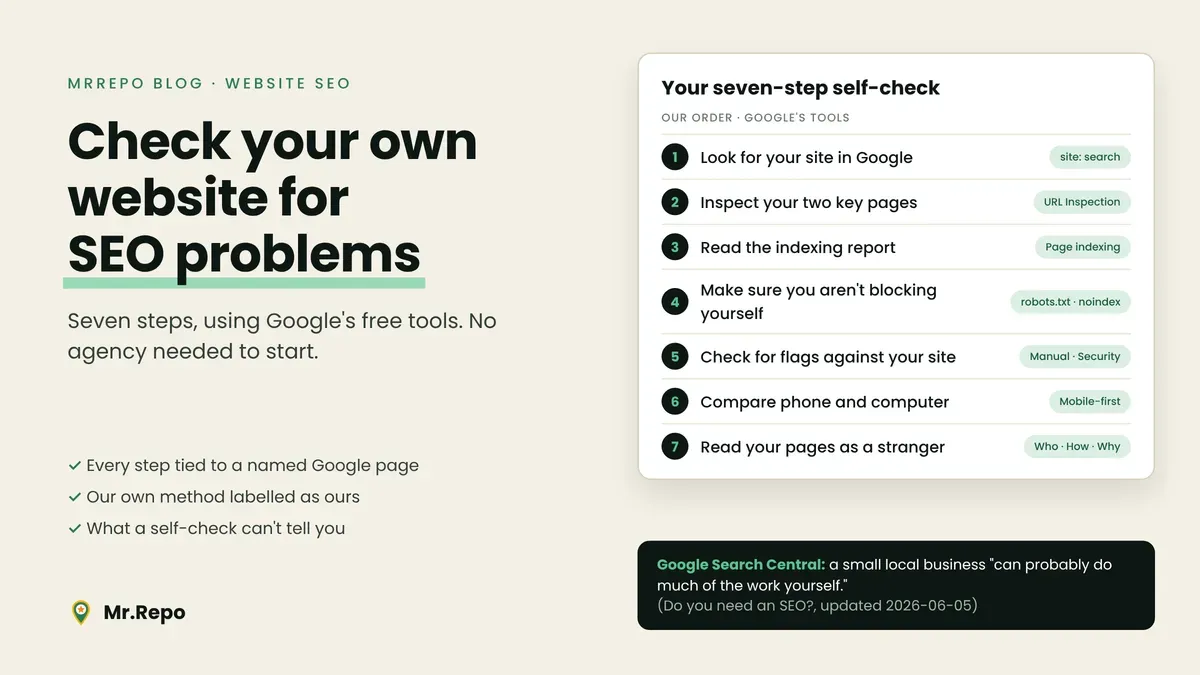
Google's own advice to small businesses is encouraging, with a condition attached. On its "Do you need an SEO?" page (last updated 2026-06-05), Google says that if you run a small local business, "you can probably do much of the work yourself." This post covers part of that work, by our selection: finding out whether Google can reach and index your site, and whether anything has been flagged.
Two limits first. A self-check can surface problems; it does not produce rankings, and the same Google page says no one can guarantee a #1 ranking. And the seven-step order below is ours. Each step cites a named Google help page, but Google does not publish this sequence, and where we add a view we say "our reading".
Before you start
You need a Google account and your website added as a property in Search Console. Google describes Search Console as a free service for monitoring and troubleshooting how your site appears in Google Search. Its overview page doesn't explain how to verify ownership (it links to a separate article for adding a property), and it doesn't say how long data takes to appear. Treat your first visit as setup, then check each report for data.
Step 1: Look for your site in Google
Search for site:yourwebsite.com, replacing the placeholder with your own domain. Google's SEO Starter Guide (last updated 2025-12-10) says: "If you see results pointing to your site, you're in the index."
Use it as a quick look, not a count. Google's site: operator page (last updated 2025-12-10) says the list of URLs returned is not always exhaustive, and that if a URL doesn't show, you should use the URL Inspection tool. That is the next step.
Step 2: Inspect your two most important pages
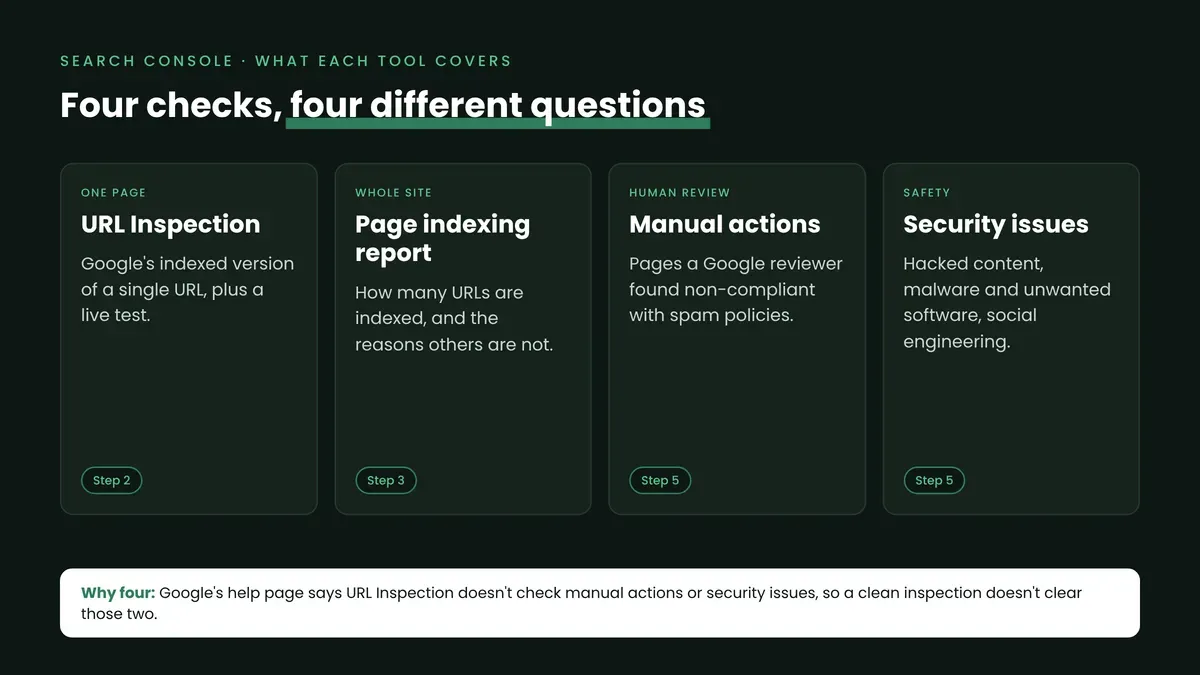
Open the URL Inspection tool in Search Console and enter your home page, then your main service or contact page. The tool reports Google's indexed version of a page: indexing status, crawl details, the canonical URL Google chose, and enhancements such as structured data.
Read the verdict carefully. Google's help page says URL is on Google means the page is eligible to appear, not that it is guaranteed to. URL is not on Google means it won't appear in results. The live test fetches the page in real time, so its result can differ from the indexed version, and requesting indexing doesn't ensure inclusion. There are also daily limits on inspections, live tests and indexing requests.
One gap matters for step 5: the same page says the tool doesn't check manual actions or security issues.
Step 3: Read the Page indexing report
The Page indexing report shows how many URLs Google has crawled and indexed, and lists the reasons other URLs weren't indexed. The reasons Google lists include server errors, redirect errors, pages blocked by robots.txt, pages marked noindex, soft 404s and other 4xx errors, Crawled - currently not indexed and Discovered - currently not indexed, and duplicates.
Do not read every not-indexed row as a fault. Google's page says not indexed is not necessarily bad: some pages, such as duplicates, should not be indexed, and the goal is for your important, canonical pages to be indexed.
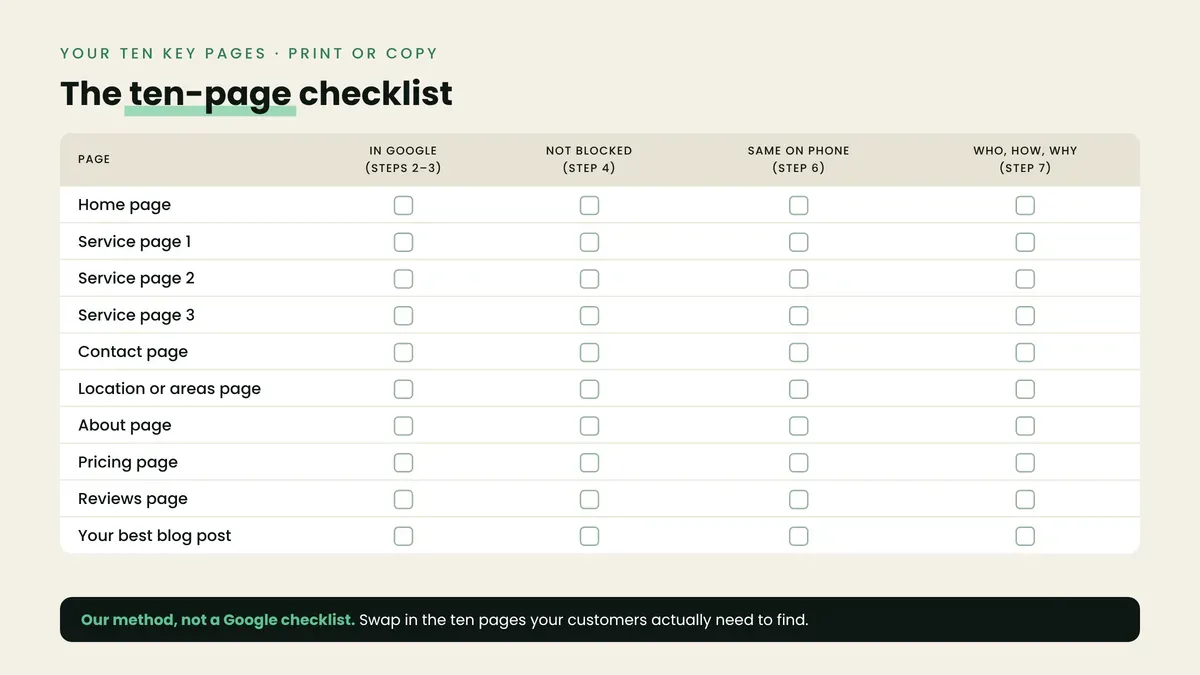
Our triage method: write down the ten pages you want customers to find (home, each service, contact, location), then look for each in the report. Look at the rest after those ten are accounted for. Google says the example URL list is limited to 1,000 rows and may not show every affected URL.
After you fix something, Google's page says to use Validate fix, and that validation typically takes up to about two weeks, but can take much longer. It asks you not to start it again while one is running.
Step 4: Make sure you aren't blocking yourself
Two reasons in the Page indexing report may be your own doing (our reading): blocked by robots.txt and noindex. Google's robots.txt page (last updated 2025-12-10) explains that the file is mainly for managing crawler traffic and is "not a mechanism for keeping a web page out of Google." To keep a page out, it points to the noindex meta tag or response header, or to password protection.
In practice (our method): open yourwebsite.com/robots.txt in a browser and check that no rule covers a page from your ten-page list. Then check that none of those pages carries a noindex tag or header.
If you've submitted a sitemap, the Sitemaps report shows only sitemaps submitted through the report or the API, and Google says a sitemap doesn't guarantee a URL will be crawled or indexed.
Step 5: Check Manual actions and Security issues
Neither of these appears in URL Inspection, so check both reports.
A manual action means a human reviewer at Google determined that pages on the site don't comply with Google's spam policies. Google's page says affected pages or sites can be ranked lower or omitted from results, and that you're notified in the report and in the Search Console message center.
The Security issues report shows when a site appears hacked or could harm visitors. Google groups issues into hacked content, malware and unwanted software, and social engineering. Affected pages can show a warning label in search results or a warning page in the browser.
For either report, Google's process is to fix the issue across the site, then select Request Review and explain what you did. Reviews can take days or weeks, and Google asks you not to resubmit while one is pending.
Step 6: Compare your site on a phone and a computer
Google uses the mobile version of your content for indexing and ranking, which it calls mobile-first indexing (best-practices page last updated 2025-12-10). Its guidance is that the mobile site should carry the same primary content and headings as desktop, with equivalent titles and meta descriptions, the same structured data and the same robots meta tags. It also warns against lazy-loading primary content that needs a user action such as swiping, clicking or typing.
Our method: open your main service page on a phone and on a computer, and compare the headings, the service description and the contact details.
Step 7: Read your pages as a stranger would
Google's page on people-first content (last updated 2026-10-05) frames content around three questions: who created it, how it was created, and why. It asks whether it is self-evident to visitors who authored the content, and says it strongly encourages accurate authorship information. Of the aspects of experience, expertise, authoritativeness and trustworthiness, it says trust is most important.
Our reading: for each of your ten key pages, ask whether a stranger could tell who runs the business, where it operates and why the page exists. If the answer is no, that is a content fix tools may not flag.
The seven steps at a glance
| Step | Where | What you're looking for |
|---|---|---|
| 1 | Google search, site: | Any results from your domain |
| 2 | URL Inspection | URL is on Google for your two key pages (eligible, not guaranteed) |
| 3 | Page indexing report | Your ten key pages accounted for |
| 4 | robots.txt and page source | No block or noindex on pages you want found |
| 5 | Manual actions, Security issues | No manual action or security issue listed |
| 6 | Phone vs computer | Same content on both |
| 7 | Your own pages | Who, how and why are clear |
What a self-check can't tell you
Our reading: these steps won't show where you rank or speed up changes, and clean reports don't promise rankings. Google's SEO Starter Guide says some changes might take effect in a few hours, while others could take several months.
Before you pay for help
Google's own page lists points to check before hiring an SEO. If your SEO offers an audit, consider what's involved, and, at this stage, grant read access to Search Console, not write access. Google says no one can guarantee a #1 ranking. Google also says it doesn't evaluate or endorse third-party SEO tools.
Our reading: steps 1 to 7 give you a baseline to compare an agency's report against.
Where a crawler audit fits
Our reading: Search Console reports what Google recorded about your property, while a crawler reports what it finds when it visits your pages, so the two answer different questions.
MrRepo's Site Audit crawls pages. Its features page describes it this way: it crawls every page of your website, following its robots.txt, and checks for broken pages and links, redirects, missing or cut-off titles and descriptions, thin pages, HTTPS problems and content that only loads on a click. Each finding lists the pages it affects with a suggested fix, and the audit downloads as a PDF report or a fix list.
Two things the description does not say: that the audit uses your Search Console data, or that it makes changes to your site. Our reading: it is separate from Google's reports and doesn't replace steps 2, 3 and 5. If a long warning list from an audit tool confuses you, see our earlier post, What an SEO Audit Can Tell You — and Which Warnings Google Plays Down. To read the traffic numbers once Search Console is set up, see Search Console and Your Business Profile Count Different Things.
Key takeaways
Google says a small local business can probably do much of the work itself; it also says no one can guarantee a #1 ranking.
The seven-step order is ours; each step cites a named Google help page.
"Not indexed" isn't automatically a problem. Check that your ten important pages are accounted for.
URL Inspection doesn't cover manual actions or security issues, so check those two reports separately.
Some changes might show in hours, others could take months. Our reading: recheck before re-fixing.
Clean reports don't promise rankings.
FAQ
Is Search Console free? Google describes it as a free service.
Does site: show every page Google has indexed? Not always. Google says the list of URLs returned is not always exhaustive. Use URL Inspection for a specific page.
How long does a fix take to show up? It varies. Google's Starter Guide says some changes might take effect in a few hours and others could take several months. For validation of an indexing fix, the Page indexing report page says typically up to about two weeks, sometimes much longer.
Does a sitemap get my pages indexed? Not necessarily. Google's Sitemaps report page says a sitemap doesn't guarantee a URL will be crawled or indexed.
Do I still need an agency? Google says you can probably do much of the work yourself if you run a small local business, but this post doesn't cover every kind of site problem or any ranking strategy.